 COME APK
COME Login & OTP Help: Choose the Right Recovery Step
If COME opens but you cannot sign in, first identify whether the problem is a password, a missing one-time code or a connection error. These are account-access tasks; reinstalling the APK is not automatically the right fix.
Forgotten password
COME's Forgot Password help points to the login page. Use the recovery control on the current sign-in screen and follow the instructions for your existing account.

Make sure you still have access to the established recovery method. This website cannot reset an app password, change an account’s phone number or confirm account ownership. Do not send your password to anyone offering to perform those steps for you.
OTP not received
If an OTP does not arrive, check SMS delivery and the destination shown on the sign-in screen before requesting another code. Follow the resend timer rather than repeatedly submitting requests.

- Review the number or other destination displayed in the account flow; do not publish it in a screenshot.
- Check the SMS inbox and any message filtering on the device.
- Read any resend timer or instruction before making another request.
- Use a newly received code only in the intended sign-in flow. Do not forward it to a helper or put it in a chat message.
- If the issue persists, use the help route presented by the service and describe the symptom without including the code.
This guide cannot promise a delivery time or a successful verification. Repeated requests may also make it harder to tell which message belongs to the latest attempt.
Connection error or a screen that does not finish loading
Distinguish a connection symptom from rejected credentials. Note whether the whole app is unavailable or only one screen fails. Check that the device has a working connection and record any error text before restarting the app.
Do not use an APK from an unrelated source to solve a server or account problem. If other websites load but the service still fails, its own support route is the appropriate place to report the issue.
Find the relevant help category
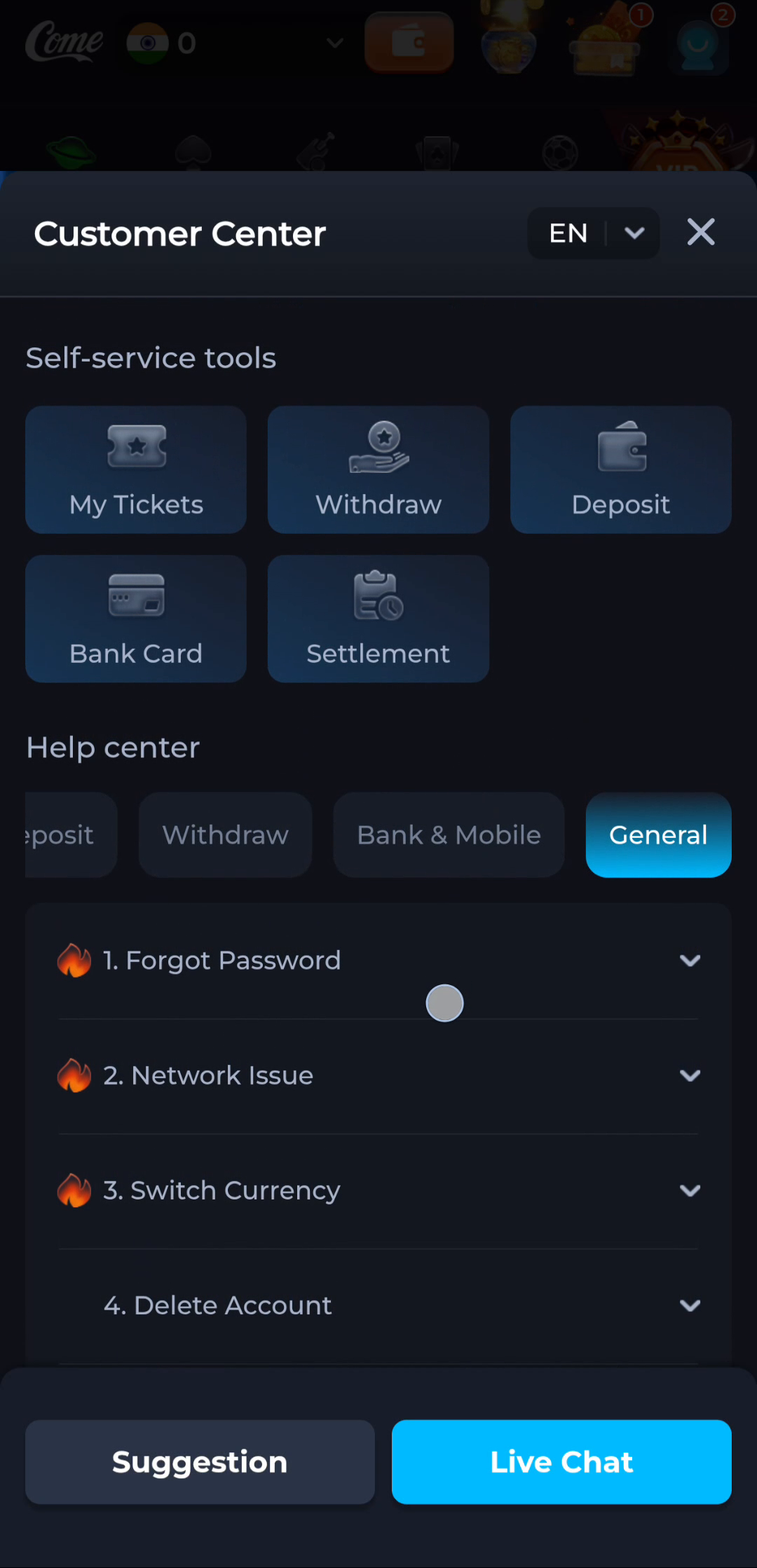
The Customer Center screen groups Forgot Password, Network Issue, Switch Currency and Delete Account under General, with a separate Live Chat entry. Choose the topic that matches the problem; a transaction category will not address a missing password.
What to include in a support explanation
- A short description of the failed step.
- The exact error wording, if any.
- The time of the attempt and the device or Android version.
- Whether the issue affects login, code delivery or page loading.
- A cropped error image only if it excludes secrets and unnecessary personal details.
Keep passwords, OTPs, payment PINs and full identity or banking documents out of public messages. If you are unsure whether a support destination is genuine, verify it inside the service before sharing anything.
Read the guide for an installation failure
Return to the app overview
Use the homepage to find the COME entry and the main help topics.