COME APK Download for Android: Install & Update Steps
To download the COME APK, open the COME entry below and use the Download control on that page. Check the file offered there before installing it on your Android device. This site’s button opens the entry page; it is not a direct APK file link.

Check the release information
- App listing name: COME.
- Listed version: v1.12.
- Listed size: 3.1MB.
- App listing checked: 19 September 2026.
- Installation format: APK for Android.
Compare the version and size shown for the file with the app-listing details above. Also check the publisher and Android requirements. A version label or familiar filename is not a signature or safety check, and the word “latest” is not a version number.
Before downloading
- Use the Android device on which you intend to install the app.
- Make space for both the downloaded package and the installed app; the listed APK size is not the total storage requirement.
- Use a stable connection and wait for the browser to finish saving the file.
- If you already use COME, keep access to the original sign-in method. Do not uninstall simply to make room for an update.
- Read any Android or browser warning before deciding whether to proceed. Keep Google Play Protect enabled.
Download and install, step by step
- Open the COME entry with the button on this page. Confirm the page and the app name before using its Download control.
- Review any release and device information shown. If the page offers more than one file, use the stated device requirements rather than guessing from a filename.
- Save the APK and confirm the download has completed. A web-page shortcut is not the installation package.
- Open the saved file from the download notification or file manager. Android may ask whether that browser or file manager can install apps. Review the source and the device’s instructions; do not override a harmful-app warning.
- Read the installer’s app details and prompts. If installation finishes, choose Open or find the app in your app list.
- After first open, check the interface and use your existing account access if you already have an account.
Menu labels vary by phone and Android version. This is the normal Android workflow, not a claim that this release was tested on every device.
Read the detailed installation guide
Updating an existing installation
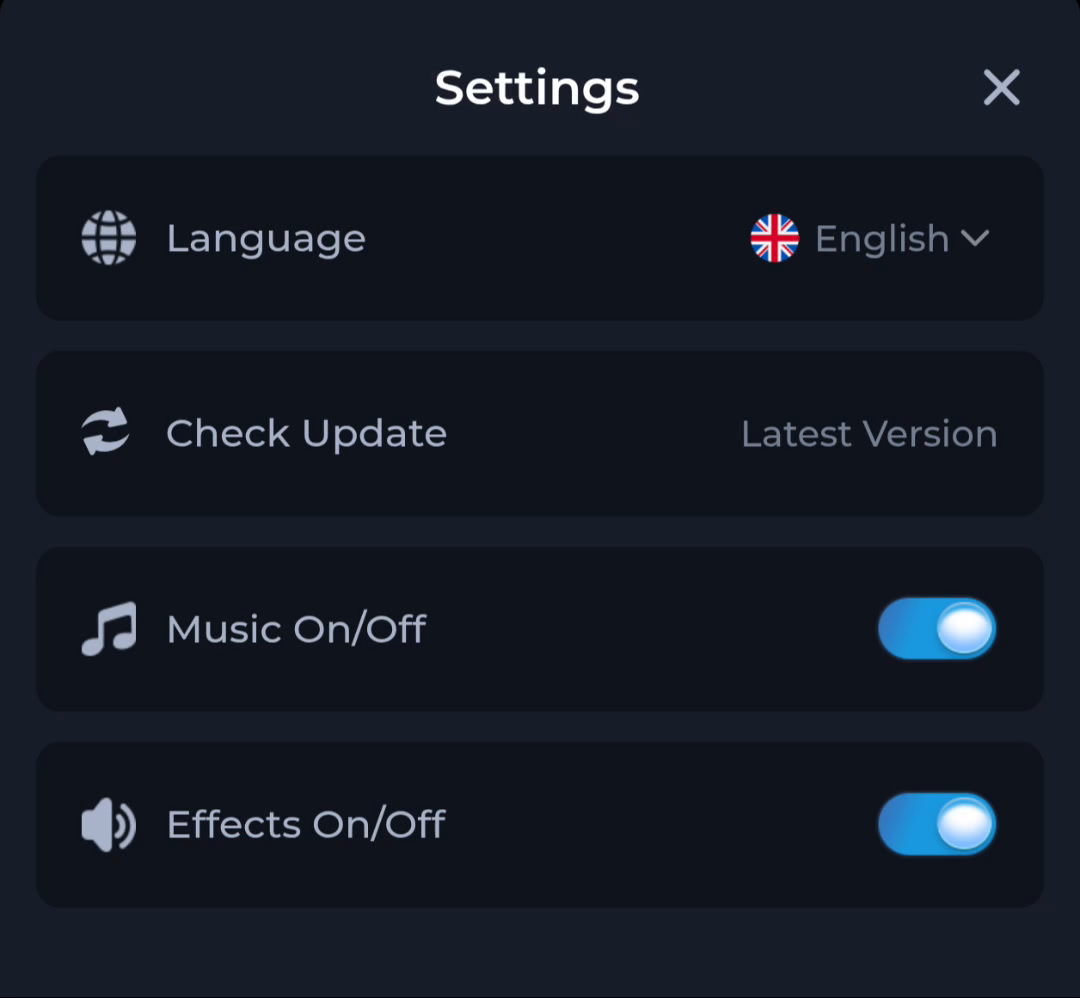
The COME Settings screen below includes Check Update. If that option is present in your installed version, read the update details there. Keep the existing app while checking the new package; Android needs a compatible app identity and signing relationship for an in-place update.
If something goes wrong
- No file appears: check the browser’s downloads list and whether the download actually started.
- “App not installed” or a parsing error: record the exact message and check completion, storage and compatibility.
- A security warning appears: stop and verify the source. Do not switch off protection as a shortcut.
- The app opens but login fails: treat it as an account or connection issue before reinstalling.
Troubleshoot installation errors
Find the right next step
For the product overview, return to the COME homepage. For a specific problem, the Guides page groups the available help by task.
Open the download entry
Continue to the COME page and check the release offered there before saving an APK.