 COME APK
COME APK Update Guide for Existing Android Users
To update the COME APK, first check the update option in the installed app and compare the offered release with your current installation. Keep access to the existing account and leave the app installed while you review the update.
Start with Check Update when it is available
The COME Settings screen includes Check Update. The words “Latest Version” describe an update status; they are not a numeric release identifier. Check the version on your own device, since layouts and available releases can change.
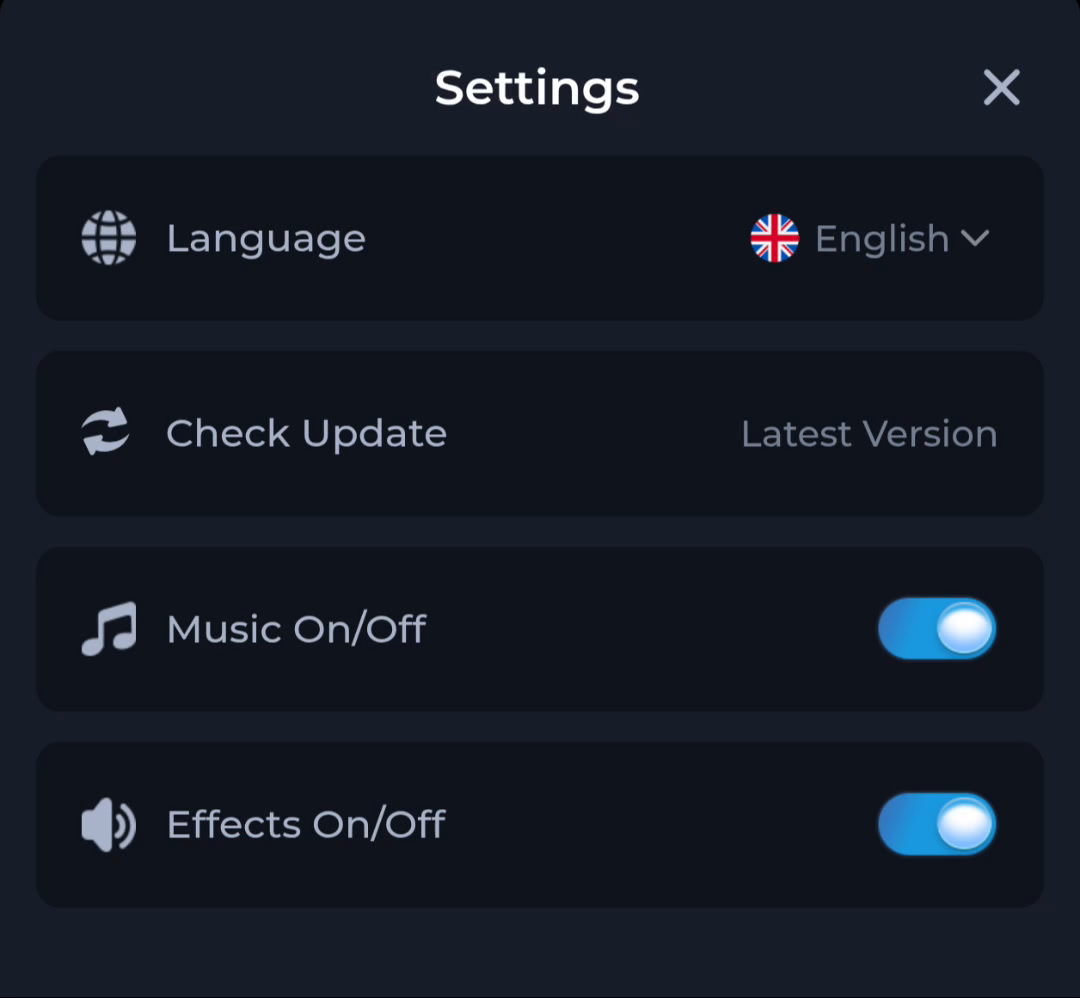
An update prompt is a starting point for checking the release. It does not independently prove a file’s identity, compatibility or safety.
Before changing the software
- Confirm you can still use your established sign-in or recovery method.
- Record the installed app version if Android or the app exposes it.
- Check the offered version and any release or compatibility information at the source.
- Allow sufficient storage and a stable connection for the complete download.
- Keep the current installation until you understand any update error.
The app listing checked on 19 September 2026 shows v1.12. Compare it with the offered file and your installed version. The date you save a file does not tell you which release it contains.
Install an update through Android’s normal flow
Open the completed package and read the installer’s app identity and update prompt. Android normally expects an update to be compatible with the installed app’s identity and signing relationship. Similar names and matching icons are not enough to establish that relationship.
If the installer offers a second, separate app or rejects the update, stop and compare the source and release information. Do not force the change by deleting the original app before understanding the mismatch.
Check the result after installation
- Open COME from the installed-app entry.
- Check the version again where it is available.
- Confirm you can reach the account or recovery route you used previously.
- Review any newly requested permission in the context of the feature needing it.
This workflow reduces avoidable confusion; it cannot guarantee that every release preserves every local setting. Account access, app data and an APK file are separate things.
When the update is blocked
Keep the exact message. A failed download, insufficient space, compatibility problem and signing conflict need different responses. A security warning needs source verification, not a disabled security check.
Diagnose an installation or update error
Find account-recovery guidance
Review the current download entry
Use the Download page to compare the entry and app details before your next attempt.